
A simple Excel cash log you can check
Follow money in and money out, trace the closing balance, and practise spotting a mismatch with a small synthetic example.
Updated Sep 22, 2026
The problem
A total is harder to trust when the input rows, calculations and expected payments are mixed together. This example keeps recorded cash movements in one place and shows how they lead to the closing balance.
What the example covers
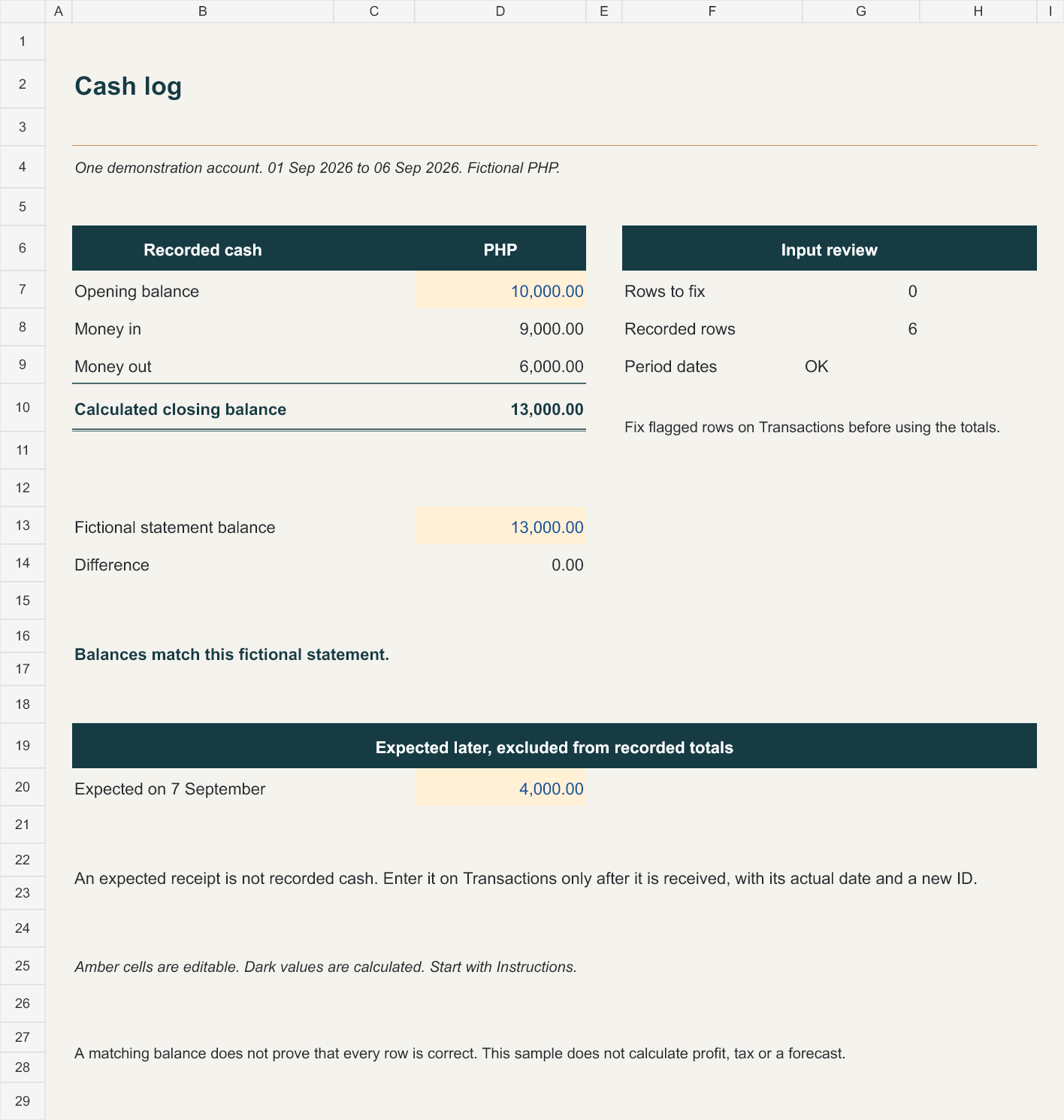
One made-up account, one short period and six transactions. Start with PHP 10,000, add PHP 9,000 received, and subtract PHP 6,000 paid. The calculated closing balance is PHP 13,000.
The figures are fictional Philippine pesos. You can follow the relationship in any single currency; the sample does not convert currencies.
Follow the calculation
| Step | Amount (PHP) |
|---|---|
| Opening balance | 10,000 |
| Money received | 9,000 |
| Money paid | 6,000 |
| Closing balance | 13,000 |
Opening balance + money received − money paid = closing balance.
An expected payment belongs outside the recorded movements until it is received. This example is a cash log, not a profit report, forecast, payroll tool or tax calculation.
Try a different case
Change one payment from PHP 1,200 to PHP 1,500. Before checking the result, explain what should happen to the closing balance.
The extra PHP 300 paid lowers the closing balance to PHP 12,700. If your comparison balance still says PHP 13,000, the difference should stay visible until you establish why the two disagree.
Read the lesson
The cash-log guide walks through the six transactions and a changed-case exercise. The file-version guide explains a useful habit for keeping your working copy straight.
Use your own working copy
- Download the XLSX file and save a separate working copy.
- Read the Instructions sheet. The three sheets are Summary, Transactions and Instructions.
- Change the amber input cells on Summary. Enter transactions in columns B:F of Transactions; columns G:I contain formulas.
- Use In or Out and a positive amount. Do not enter a negative payment.
- There are 100 prepared rows, 12–111. Rows below 111 are not included. To remove a transaction, clear its input cells in B:F and keep the formulas.
- Check the input warnings and compare closing cash with a separate statement or count.
Formula cells are editable and are not password protected. Keep the untouched sample so you can recover a formula if you change one by mistake.
What has been checked
Automated checks covered the baseline, the changed payment, added rows, missing or invalid inputs, duplicate IDs, period dates and a mismatch. The saved XLSX was reimported and its two calculation cases were checked again. The preview above is a render of this workbook’s Summary sheet.
These checks used a spreadsheet calculation engine. Desktop Excel, Excel for the web, LibreOffice and Google Sheets have not been tested. Input validation is included in the file, but each application’s typing and paste behavior still needs checking. Treat version 1.0 as an educational prototype and check a small example in your own application before relying on it.
The file contains no macros, external data connections or real financial information. Read the sample-use terms before sharing or adapting it. Send a question or report a problem if something is unclear.